> For the complete documentation index, see [llms.txt](https://help.bizmachine.com/llms.txt). Markdown versions of documentation pages are available by appending `.md` to page URLs; this page is available as [Markdown](https://help.bizmachine.com/en/getting-started/prospector-overview.md).

# Prospector: overview of features and capabilities

Overview of every Prospector feature and capability - login, company profile, labels, segments, filtering, export, import, notifications, and integrations.

*Updated: 30 September 2026*

Prospector is a live database connected to more than 100 public sources (as of September 2026), including the Commercial Register, LinkedIn, job boards, and the contract register. It covers **11.7 million companies** (as of June 2026) across five Central European markets (Czech Republic, Slovakia, Poland, Hungary, Germany) and more than **4 million verified personal contacts** (as of June 2026). It lets you search for companies, track changes at your clients, and build targeted lists for sales activity.

***

### 1. Logging in and basic setup

#### How to log in

Once your access is set up, you'll get a **welcome email with a login link**. Click it - no password needed.

A login normally lasts **90 days** (as of September 2026), so you don't have to sign in on every visit.

> **Note:** How long your login stays valid depends on your subscription length (trial accounts have limited access time). A login can also expire if you clear your browser data or cookies.

**When to enter your email manually on the login page:**

* You didn't click the link within **24 hours** of receiving it (the link expires).
* You want to open Prospector on a **new device**.
* Your login expired (the 90-day period ended, or you cleared your browser data or cookies).

In every case, enter your work email address on the login page and a new link will arrive.

> **Tip:** Prospector can be used on **up to 3 devices** (as of September 2026) at the same time. If you go over the limit, the system shows a warning - click **Close**. Prospector then shows your active sessions. Click **End session** on the device you no longer use, then click **Login again**.

![Popup showing the device limit reached - overview of active sessions](https://247275268-files.gitbook.io/~/files/v0/b/gitbook-x-prod.appspot.com/o/spaces%2FYkl7SJ14Nk0vzhVx7upl%2Fuploads%2Fgit-blob-070c21ae8575ffcdcb87ff6c5c9c9254d2703d12%2Fprospector-overview-popup-device-limit.png?alt=media)

#### Changing the interface language

In your profile settings, you can switch the **interface language** as needed.

***

### 2. Homepage - finding your way around

After logging in, you'll see the homepage with:

* **Feature tiles** - shortcuts into the main parts of Prospector: **AI Connector (MCP)**, **AI Prioritization**, **Find new opportunities**, and **Follow business signals**.
* **Recently viewed** - quick access to profiles you opened recently.
* **The signal feed** - the main column of the homepage, showing what is currently happening at the companies you follow.

![Prospector homepage after login](https://247275268-files.gitbook.io/~/files/v0/b/gitbook-x-prod.appspot.com/o/spaces%2FYkl7SJ14Nk0vzhVx7upl%2Fuploads%2Fgit-blob-88ae8f0645e0005d70801dc0f91beae7171360c2%2Fprospector-overview-homepage.png?alt=media)

***

### 3. Reading a company profile

Clicking a company name (in segment results or in a list) takes you to its **detailed profile**. The profile is split into several tabs.

#### What's in the profile

| Tab                      | Content                                                                                                                                                                              |
| ------------------------ | ------------------------------------------------------------------------------------------------------------------------------------------------------------------------------------ |
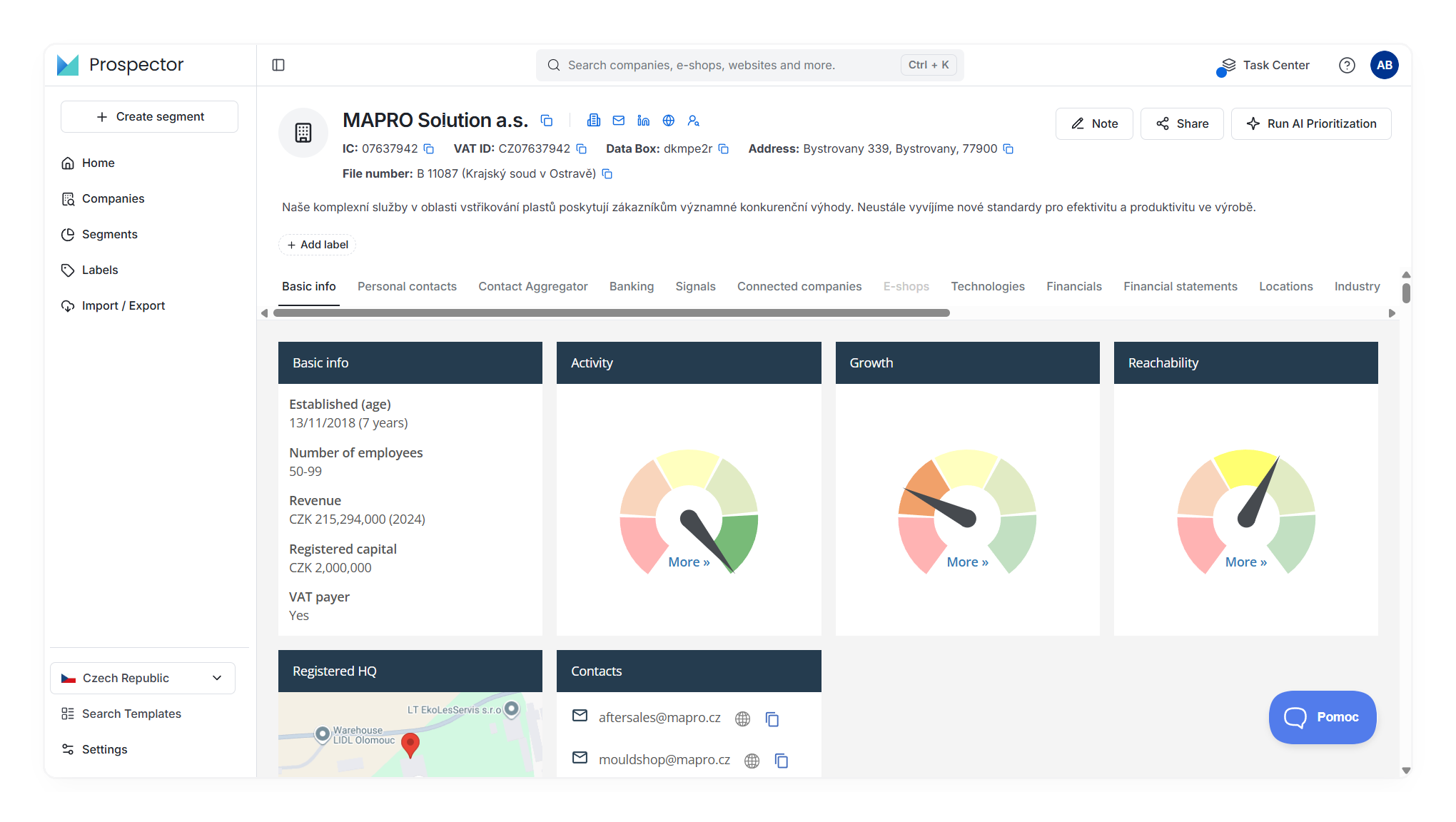
| **Basic info**           | Basic data (founding date, employees, revenue, capital, VAT payer status), Activity/Growth/Reachability indicators, headquarters map, and general contacts (front desk, info emails) |
| **Personal contacts**    | Named contacts (name, position, LinkedIn, verification date)                                                                                                                         |
| **Contact Aggregator**   | An overview of the sources where Prospector found contacts for the company                                                                                                           |
| **Banking**              | Account numbers and the banks the company holds them with                                                                                                                            |
| **Signals**              | Company changes captured automatically, grouped into the categories listed under [Tracking signals and setting up notifications](#9-tracking-signals-and-setting-up-notifications)   |
| **Connected companies**  | Ownership relationships and connections through people in leadership                                                                                                                 |
| **E-shops**              | An overview of the company's e-shops and their metrics                                                                                                                               |
| **Technologies**         | Likely technologies estimated from public sources                                                                                                                                    |
| **Financials**           | Financial indicators and how the company's finances have developed                                                                                                                   |
| **Financial statements** | Published financial statements                                                                                                                                                       |
| **Locations**            | Addresses and types of the company's premises                                                                                                                                        |
| **Industry**             | Classification by NACE code and line of business                                                                                                                                     |
| **Owners**               | The company's ownership structure                                                                                                                                                    |
| **Statutory Reps**       | Executives and other statutory bodies of the company                                                                                                                                 |
| **Owned companies**      | Companies in which this company holds an ownership stake                                                                                                                             |
| **Vehicles**             | Number and types of registered vehicles, vehicle detail by VIN                                                                                                                       |
| **Employee Category**    | Employee count category and how it has changed over time                                                                                                                             |
| **Open jobs**            | Current job openings (position, category, location, source) and a chart of how the count has changed over time                                                                       |
| **Public money**         | Contracts as a supplier and as a buyer, grants received, tender participation                                                                                                        |
| **Real estate**          | Buildings and land registered to the company in the land register (cadaster), with links to the record and to the map                                                                |
| **Agriculture**          | Registration in the Register of Agricultural Entrepreneurs, area of farmed land, grants by year                                                                                      |

Which tabs are available depends on the company type. Tabs that do not apply are dimmed rather than hidden, so you can always see the full list.

<figure><img src="https://247275268-files.gitbook.io/~/files/v0/b/gitbook-x-prod.appspot.com/o/spaces%2FYkl7SJ14Nk0vzhVx7upl%2Fuploads%2Fgit-blob-fb35669bc4e6795132095d4ab8c37aed43cacd50%2Fprospector-overview-profile-tab-strip.png?alt=media" alt="The full tab strip on a company profile, with unavailable tabs dimmed"><figcaption><p>Which tabs exist, and which are dimmed. The strip scrolls horizontally, so at default window width the last few tabs sit off-screen.</p></figcaption></figure>

<figure><img src="https://247275268-files.gitbook.io/~/files/v0/b/gitbook-x-prod.appspot.com/o/spaces%2FYkl7SJ14Nk0vzhVx7upl%2Fuploads%2Fgit-blob-f8c309636c62744884d1fc72a845464c674c5e02%2Fprospector-overview-profile-tabs.png?alt=media" alt="Company profile with tabs in Prospector"><figcaption><p>Where the tab strip sits on the page, above the profile cards.</p></figcaption></figure>

> **Note:** Technology data is indicative. It comes from job postings, public mentions, and the company's digital footprint (website and other sources) - it isn't independently verified.

#### Reading the activity indicators

Every profile carries three basic indicators:

* **Activity** - the company's digital footprint (publishing financial statements, new job postings, tender participation)
* **Growth** - growth signals such as hiring or new vehicles
* **Reachability** - how easily you can find and contact the company based on its published contacts, social profiles, and website

Beyond the basic indicators, a profile can also show:

* **Custom indicators** - built by our data team for your company's specific needs
* **AI Prioritization indicators** - the AI Prioritization feature assigns every company a value from 0 to 100 based on how closely it matches your ideal customer. The value appears as a column in the table. You can filter by it and combine it with other filters.

![Activity indicators on a company profile in Prospector](https://247275268-files.gitbook.io/~/files/v0/b/gitbook-x-prod.appspot.com/o/spaces%2FYkl7SJ14Nk0vzhVx7upl%2Fuploads%2Fgit-blob-73c95b4eb231f0e8673b664413438fa4f8798836%2Fprospector-overview-activity-indicators.png?alt=media)

#### What you can do from a profile

* **Share** the profile with a colleague (even one without Prospector access)
* Add a **Note** to the company
* Click **+ Add label** to add the company to one of your labels
* Click through to the **Commercial Register** or the **Register of Beneficial Owners**

***

### 4. Labels - managing your own lists

**Labels** are static lists of companies that you create yourself. They help you organize your portfolio.

#### How to work with labels

1. **Creating a label:** On a company profile or in a results list, click the label icon and name it (for example, "Customers," "Do not contact," "Pipeline Q2").
2. **Adding companies:** Add companies one at a time as you browse, or in bulk from segment results.
3. **Viewing a label:** Open any label from the left menu - you'll see every company in the list.

![Viewing a label with its list of companies in Prospector](https://247275268-files.gitbook.io/~/files/v0/b/gitbook-x-prod.appspot.com/o/spaces%2FYkl7SJ14Nk0vzhVx7upl%2Fuploads%2Fgit-blob-194201f1d261d819b8ad980713ad4e309b10fdf8%2Fprospector-overview-label-list.png?alt=media)

#### Customizing columns

In the label view, you can add or hide columns with the **Columns** control depending on what you need to track (vehicle count, e-shops, revenue, and so on).

#### Sharing labels with colleagues

* A label can be shared with colleagues as a **Viewer** (can see the companies) or an **Editor** (can add or remove companies).
* Sharing a label stops two colleagues from contacting the same company twice.

#### Where Magic labels come from

**Magic labels** are built by our data team. We analyze the database for a specific pattern and group the companies that match it. Magic labels appear in Prospector alongside your own labels.

***

### 5. Searching and filtering companies

#### Searching for a single company

Enter a **company name, Company ID (IČO in the Czech Republic), address, or e-shop domain** into the search field.

#### Building a filtered list

Filtering is the core of Prospector. Open the **Companies** section in the left menu, or click **+ Create segment** directly - both paths lead to the same filter screen.

→ [Open the Companies section in Prospector](https://prospector.bizmachine.com/v3/en/datasets/cz/search?sfc=true)

Prospector has more than **70 filters** (as of September 2026), grouped in the **Add filter** menu:

**Basic Information**

* Region, district, municipality, city district, or exact street
* Employee count, revenue, legal form

**Industry**

* NACE codes and custom category from firmy.cz

**Business Indicators**

* Company activity, tender participation, job postings

**Technology**

* Detected technologies (Microsoft 365, cloud tools)

**Vehicles**

* Vehicle count and vehicle age

**E-Commerce**

* E-shops and their metrics

**Contacts and Roles**

* Filter contacts by role (senior management, IT, marketing, and others)
* Phone or email availability
* Minimum number of people in a given department

**Labels & Segments**

* Add companies from an existing label to your results, or exclude customers you already know.

![Filter panel while creating a segment in Prospector](https://247275268-files.gitbook.io/~/files/v0/b/gitbook-x-prod.appspot.com/o/spaces%2FYkl7SJ14Nk0vzhVx7upl%2Fuploads%2Fgit-blob-1333fe5aa790c20ecb19804945149f2c589827d8%2Fprospector-overview-filter-panel.png?alt=media)

> **Tip:** The result count recalculates in real time as you adjust the filters.

#### Starting from a segment template

You don't have to start from scratch. Prospector offers ready-made templates for the most common cases: companies with new job postings, HR recruiting, technology companies. Open them with **Start with template...** at the bottom of the **Add filter** menu, or from **Search Templates** in the left menu.

#### Saving as a segment

Click **Save segment** to keep your filtered results as a dynamic segment. Unlike a label, a segment updates automatically as new companies enter the database and match your criteria.

![Saving a segment in Prospector](https://247275268-files.gitbook.io/~/files/v0/b/gitbook-x-prod.appspot.com/o/spaces%2FYkl7SJ14Nk0vzhVx7upl%2Fuploads%2Fgit-blob-66ae98ce879bb67eed750e2c554f87a61a85e02c%2Fprospector-overview-save-segment.png?alt=media)

**Notifications on a segment:**

* Set up a **daily or weekly email summary** of new companies or signals.
* You'll see new companies matching your criteria as soon as they're added to the database.

**Sharing and copying segments:**

* Share a segment with a colleague.
* Copy a segment and adjust just part of the filters to create a similar one.

***

### 6. Importing your own data

Have your own list of companies in Excel? Upload it to Prospector and match it against the database.

→ [Open the Import / Export section](https://prospector.bizmachine.com/v3/en/datasets/cz/imports)

#### How to import

1. Prepare an **Excel (.xls/.xlsx) or CSV** file.
2. The **Company ID or VAT ID** must be in the **first column of the first sheet**.
3. In Prospector, open **Import / Export** in the left menu, click **New Import**, and upload the file.
4. The system shows how many IDs were **Imported** and how many were **Invalid** - use **Download import log** to get a report of the invalid ones.
5. Use **Copy to a Label** to keep the imported companies together.

> The system automatically flags companies that have been dissolved.

![Data import screen in Prospector](https://247275268-files.gitbook.io/~/files/v0/b/gitbook-x-prod.appspot.com/o/spaces%2FYkl7SJ14Nk0vzhVx7upl%2Fuploads%2Fgit-blob-5740018a96d3a7eabba9e2bf410bd2c9de1150d6%2Fprospector-overview-import.png?alt=media)

***

### 7. Exporting data

You'll find downloads in the left menu, under **Import / Export**.

→ [Open the Import / Export section](https://prospector.bizmachine.com/v3/en/datasets/cz/exports)

#### What you can export

* A list of companies from a segment or a label
* Contacts (email, phone, LinkedIn)

#### How export limits work

Export limits **reset on the 1st of every month**. You can track your current usage directly in the interface.

![Overview of remaining export limits in Prospector](https://247275268-files.gitbook.io/~/files/v0/b/gitbook-x-prod.appspot.com/o/spaces%2FYkl7SJ14Nk0vzhVx7upl%2Fuploads%2Fgit-blob-e3ac42c508a4667c010e99c0b26fd6d49429ce52%2Fprospector-overview-export-limits.png?alt=media)

> **Recommendation:** Filter companies before exporting so you don't spend your limit on data you don't need. The exported file contains basic information, not everything on the profile.

#### Saving exports into a label

Exported companies can be saved straight into a **label** at the same time, so you always know what you've already downloaded.

***

### 8. Connecting Prospector to your CRM

Exported data connects directly to the tools you already use. Prospector has native integrations with:

* **Salesforce**
* **HubSpot**
* **Pipedrive**
* **Raynet**
* **Microsoft Dynamics**

For custom integrations or automated data processing, **API access** is also available. Generate an API key in your account settings. Ask customer success for the detailed steps.

***

### 9. Tracking signals and setting up notifications

**Signals** are automatically captured changes at companies. They appear on a company profile and can trigger alerts.

#### Which signals Prospector tracks

Prospector sorts signals into these categories:

* **Open Jobs**
* **Tenders and subsidies**
* **Management change**
* **Change in company premises**
* **Media mention**
* **Financial publication**
* **Change in financial health**
* **Change in connected companies**
* **Registry and ownership change**
* **Vehicle fleet changes**
* **Metric change**
* **Insolvency**

#### Filtering signals

When creating a segment, you can filter signals by:

* The **category buttons** above the results - select one or more, or leave **All categories** selected
* **Keywords** - limits results to signals containing the text you enter
* **Signal age** - shows only signals no older than a chosen number of days (max. 180 days, as of September 2026)

Results can be sorted by most recently added (default) or by company size.

#### Turning notifications on

* On a **label** or a **segment**, turn on signal tracking using the bell icon next to its name.
* On a **segment**, set alerts for both new companies and changes to existing ones.
* In **Segment Detail - Notifications**, switch on **New company notifications**, **New signal notifications**, or both, then pick the channel: **Homepage feed** or **E-mail** with a **Daily digest**.

![Setting up notifications on a segment in Prospector](https://247275268-files.gitbook.io/~/files/v0/b/gitbook-x-prod.appspot.com/o/spaces%2FYkl7SJ14Nk0vzhVx7upl%2Fuploads%2Fgit-blob-b5bca85210ecabbe4a7b4e936ec96436e5a483c1%2Fprospector-overview-notifications-1.png?alt=media)

![Setting up notifications on a segment in Prospector - detail](https://247275268-files.gitbook.io/~/files/v0/b/gitbook-x-prod.appspot.com/o/spaces%2FYkl7SJ14Nk0vzhVx7upl%2Fuploads%2Fgit-blob-aebc36632dacbfde1f578645f443594ef8f231fd%2Fprospector-overview-notifications-2.png?alt=media)

***

### 10. Using the Prospector GO browser extension

The **Prospector GO** extension is available for **Google Chrome** and **Microsoft Edge**. Our customer success team will send you the installation link.

#### What the extension does

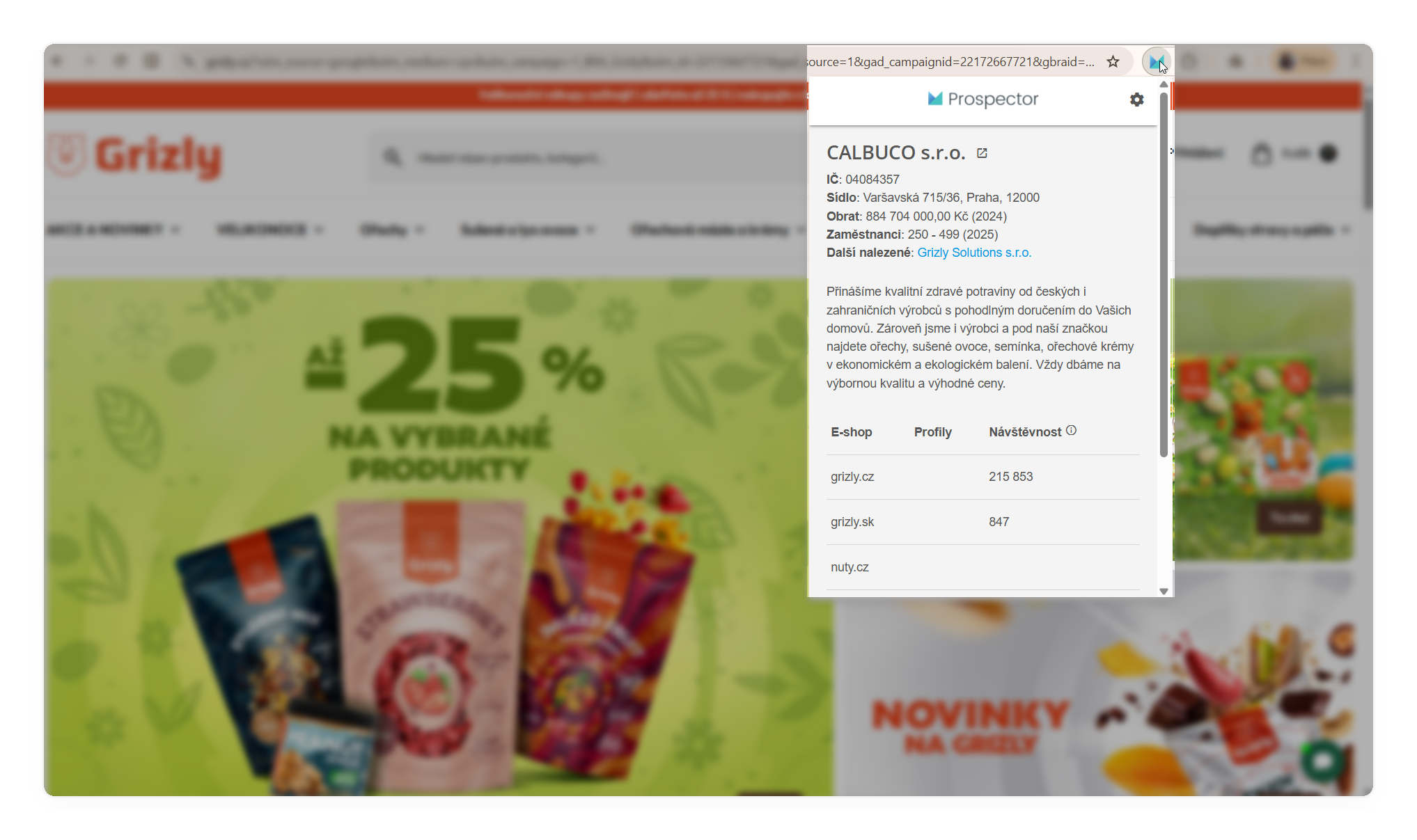
* When you visit any company's website, it shows **key Prospector data** right in your browser.
* You can **label** the company directly or click through to its full profile.

<figure><img src="https://247275268-files.gitbook.io/~/files/v0/b/gitbook-x-prod.appspot.com/o/spaces%2FYkl7SJ14Nk0vzhVx7upl%2Fuploads%2Fgit-blob-cecee25ebd58e825ba4b1c26c1c26243d7aed2ed%2Fprospector-overview-prospector-go-cz-fallback.png?alt=media" alt="Prospector GO in the browser while visiting a company&#x27;s website"><figcaption><p>The screenshot shows the Czech interface. The product itself is available in English.</p></figcaption></figure>

***

### 11. Getting help

Help is available anytime, right inside the app:

* Click the round chat button in the bottom-right corner of every screen. The button is labeled **Pomoc**, even in the English interface.
* Reach the team by **chat, email, or phone**.

![Pomoc button in the Prospector interface](https://247275268-files.gitbook.io/~/files/v0/b/gitbook-x-prod.appspot.com/o/spaces%2FYkl7SJ14Nk0vzhVx7upl%2Fuploads%2Fgit-blob-e7782d60b6768aba852dccdc4694ddec071af682%2Fprospector-overview-help-button.png?alt=media)

Support can help with login issues, training questions, and technical matters.

***

### Frequently asked questions

#### What is the difference between a label and a segment?

A label is a static list you build by hand. A segment is a saved filter: it picks up new companies on its own as they start matching your criteria. Nothing enters or leaves a label unless you put it there.

#### Why am I being asked to log in again?

A login normally lasts 90 days (as of September 2026). It can end sooner if you clear your browser data or cookies, or if your subscription period runs out. You'll also be asked to log in again if you open Prospector on more devices than your limit allows (3 devices as of September 2026). Click **Close** on the warning and Prospector lists your active sessions, so you can end one and log in again.

#### Why is a tab on a company profile dimmed?

Not every tab applies to every company. Tabs that don't apply are dimmed rather than hidden, so you can always see the full list. You'll see this on the **E-shops** tab for a company with no e-shop, or on **Agriculture** for a company that doesn't farm.

#### Which filters should I start with?

Use a ready-made template. Open **Start with template...** at the bottom of the **Add filter** menu, or **Search Templates** in the left menu, and adjust the filters from there.

#### Why is the help button labeled Pomoc in the English interface?

The Czech label is used in the English interface as well. It does what you'd expect: click it to reach the team by chat, email, or phone.

***

### Quick start: what to do first

1. **Log in** using the link in your email and confirm you can see the homepage.
2. **Install the Prospector GO extension** in your browser.
3. **Search for a few companies** you know and look through their profiles.
4. **Create your first label** (for example, "My customers") and add companies from your portfolio, ideally by importing via Company ID.
5. **Try filtering** - set up a segment for your target group and save it.
6. **Turn on notifications** for a segment or the companies you're tracking.

Once you are comfortable with the basics, connect Prospector to your CRM - see [Connecting Prospector to your CRM](#8-connecting-prospector-to-your-crm) above.

### Related articles

* [How to create a segment in Prospector](/en/search-and-filtering/creating-segments.md)